Deploying a phoenix app to Google Cloud Run





Basic setup
For this example, I won’t configure a database. Start by creating a new Phoenix project: mix phx.new deploy_phoenix_gcr --no-ecto
Then read the official documentation for container deployments: Phoenix Releases — Containers
Now run the following command mix phx.gen.release --docker This command generates all the required files to prepare your Phoenix project for Docker, significantly simplifying the setup.
Create a Project in Google Cloud Console
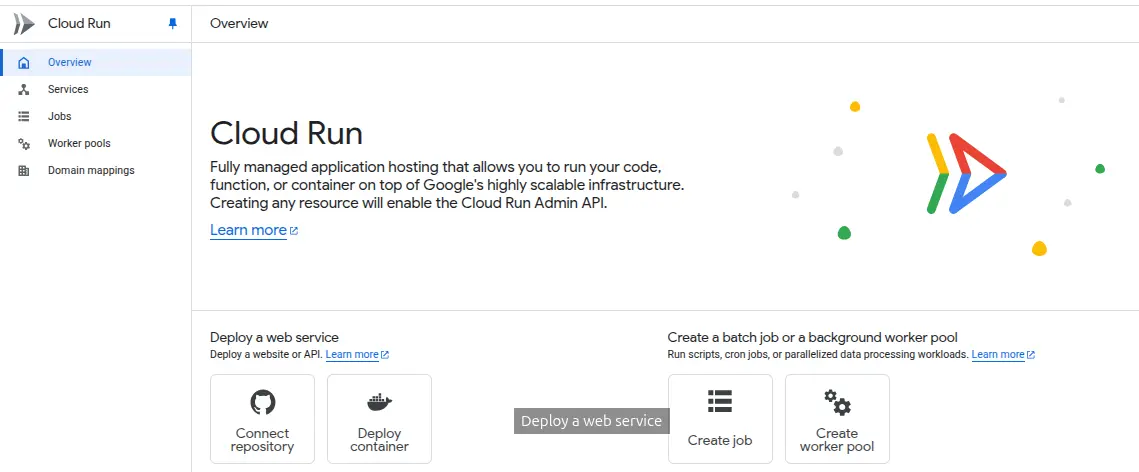
Begin by creating a new project in Google Cloud Console. Make sure the correct project is selected, then open the Cloud Run Overview
Click in connect repository
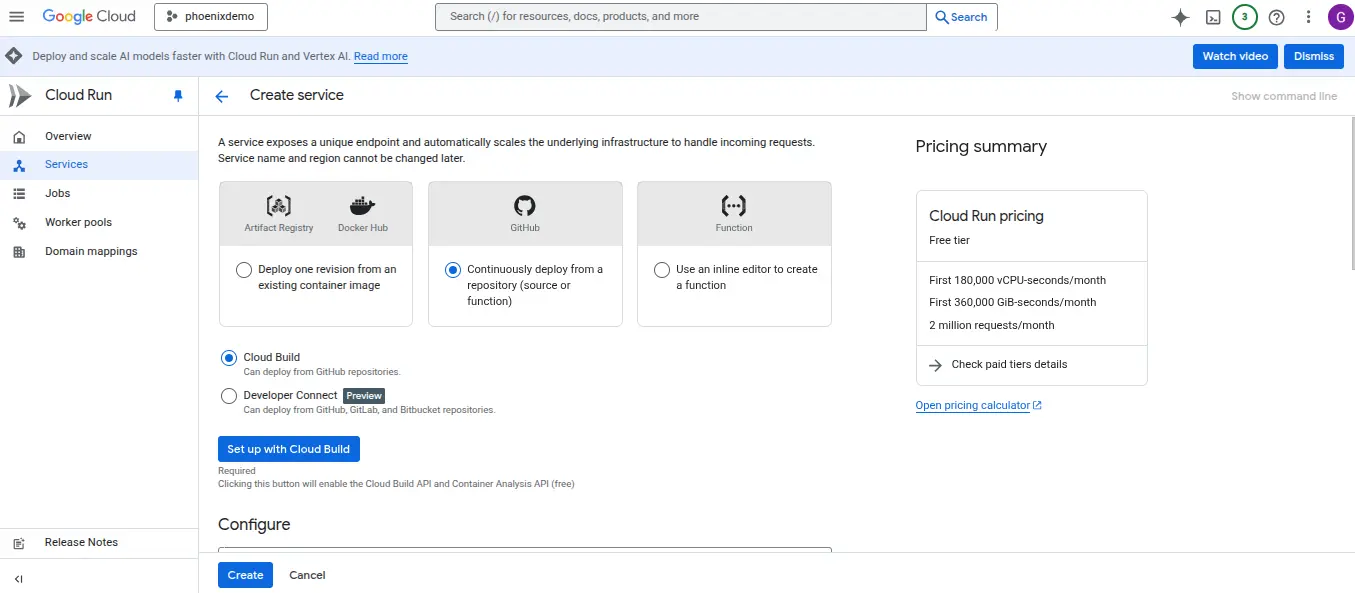
Elect the default GitHub option. Then click Setup with Cloud Build.
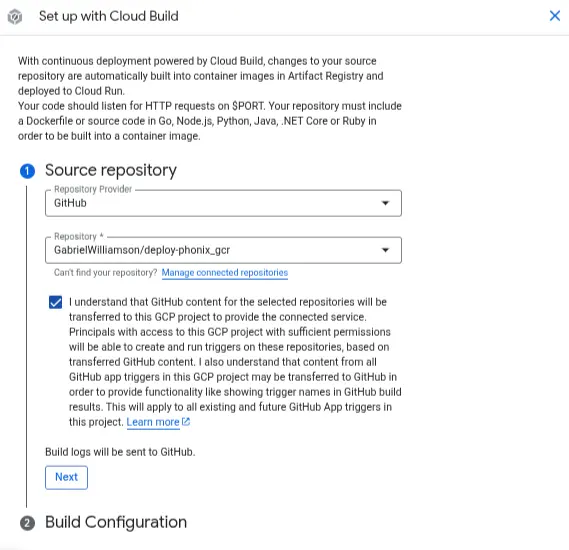
In my case, I already had GitHub connected, but the process is simple. I recommend granting access only to the repository you plan to deploy.
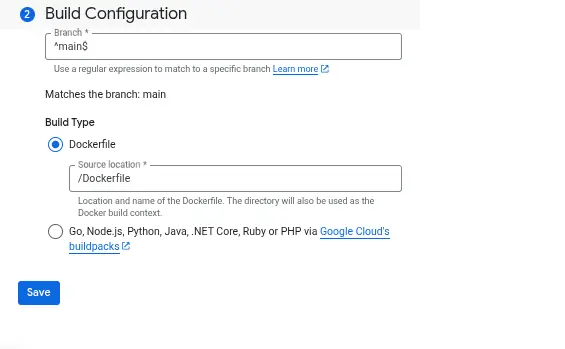
Configure the Build
After selecting your repository, proceed with the build configuration:
I left the service escalation on manual, number of instances 1, and allowed direct access from the internet. For this example, I left port 4000 as the one Phoenix uses by default; you can define it in an environment variable.
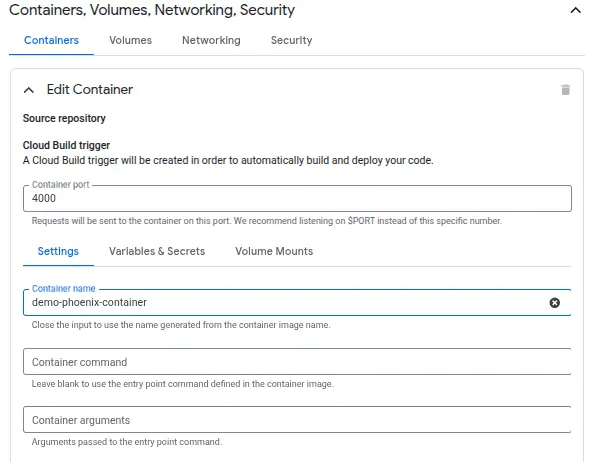
Next, you can generate a secret. Then review your config/runtime.ex file and configure your environment variables:
Environment variables
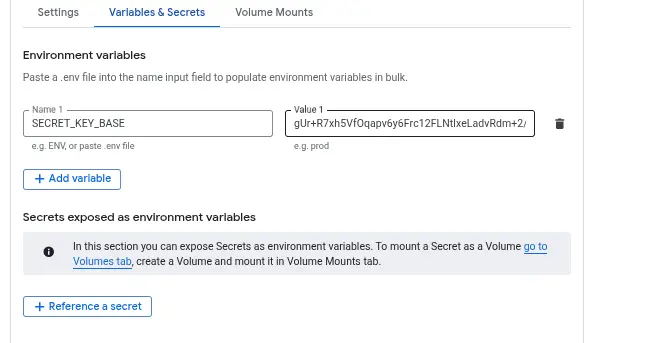
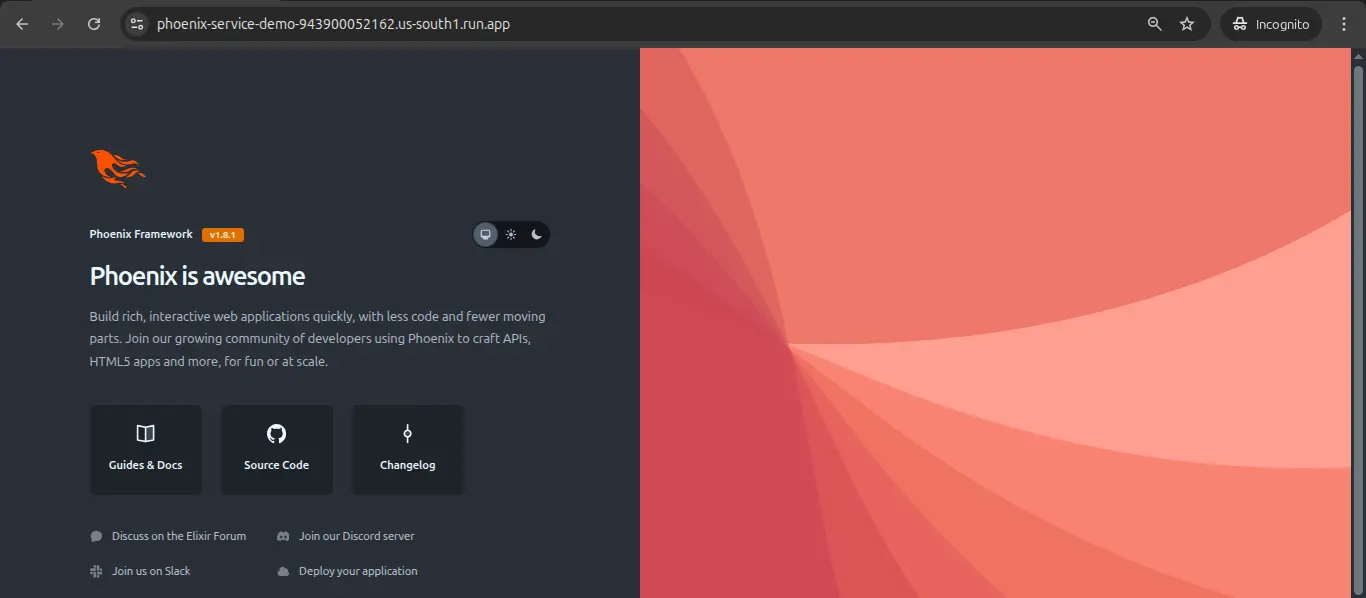
The remaining settings can stay as they are for now. I simply clicked Create to start the deployment. The process will take a moment:
Automatic Deployment with GitHub One major advantage of this setup is how simple deployments become:
just push to GitHub and Cloud Build handles the rest.
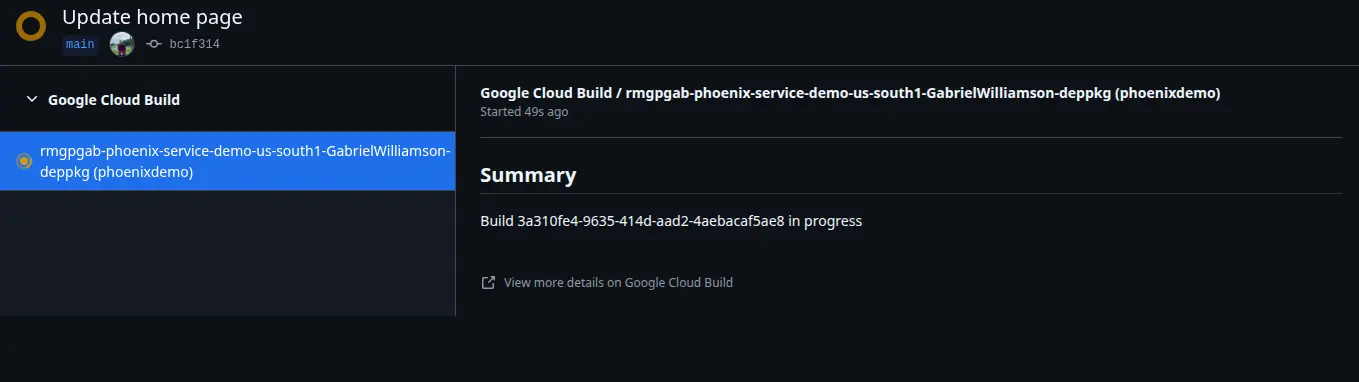
I’m not a DevOps or Docker expert, but this workflow really makes deployment very easy. The build trigger setup is elegant—just a couple of clicks—and much simpler than installing a runner on a VPS or configuring a full Linux environment manually.
The build time also surprised me: only 3 minutes for a basic Phoenix app. For me, it’s absolutely worth it.